
How to Install Code
How to Add Mirror Widget to Your Shopify Store
In this guide
Quick setup via "Add to theme" button
Manual setup — add the widget anywhere in your store
Mirror App Instagram Feed is an official Shopify app. Install it directly from the Shopify App Store — no manual code required.
Quick Setup via "Add to Theme"
The fastest way to add your widget. The Instagram Feed block is added to your page automatically
1
Click the Add to Store next to your widget — the embed window opens

2
Click Copy Feed ID to copy your Feed ID
3
Click Add to Theme and select the page where you want to display the widget
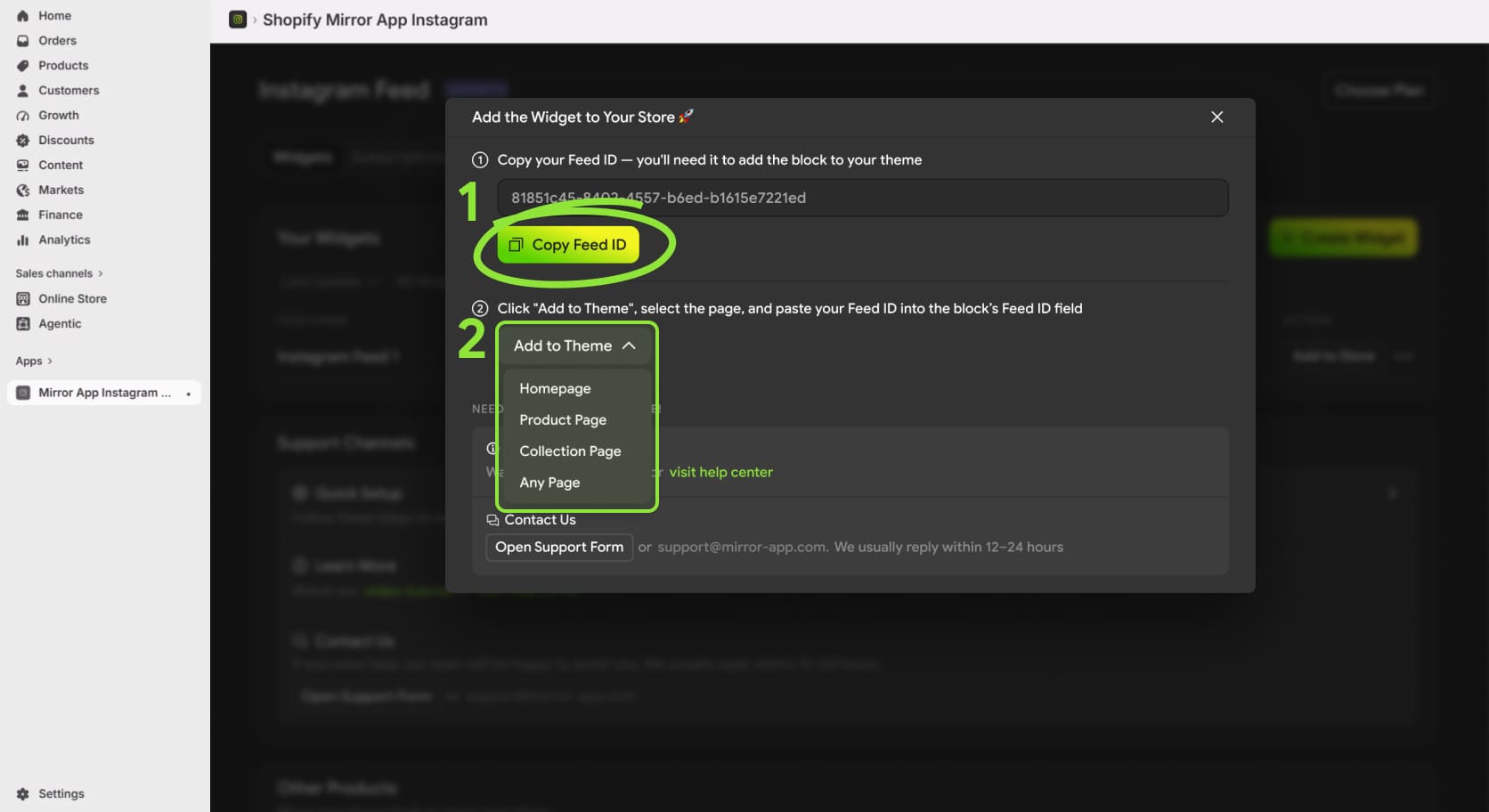
4
The Shopify theme editor opens with the Instagram Feed block already added to the page
5
In the block settings panel on the right, paste your Feed ID into the Feed ID field
6
Drag the Instagram Feed block to the position where you want it to appear on the page
7
Click Save
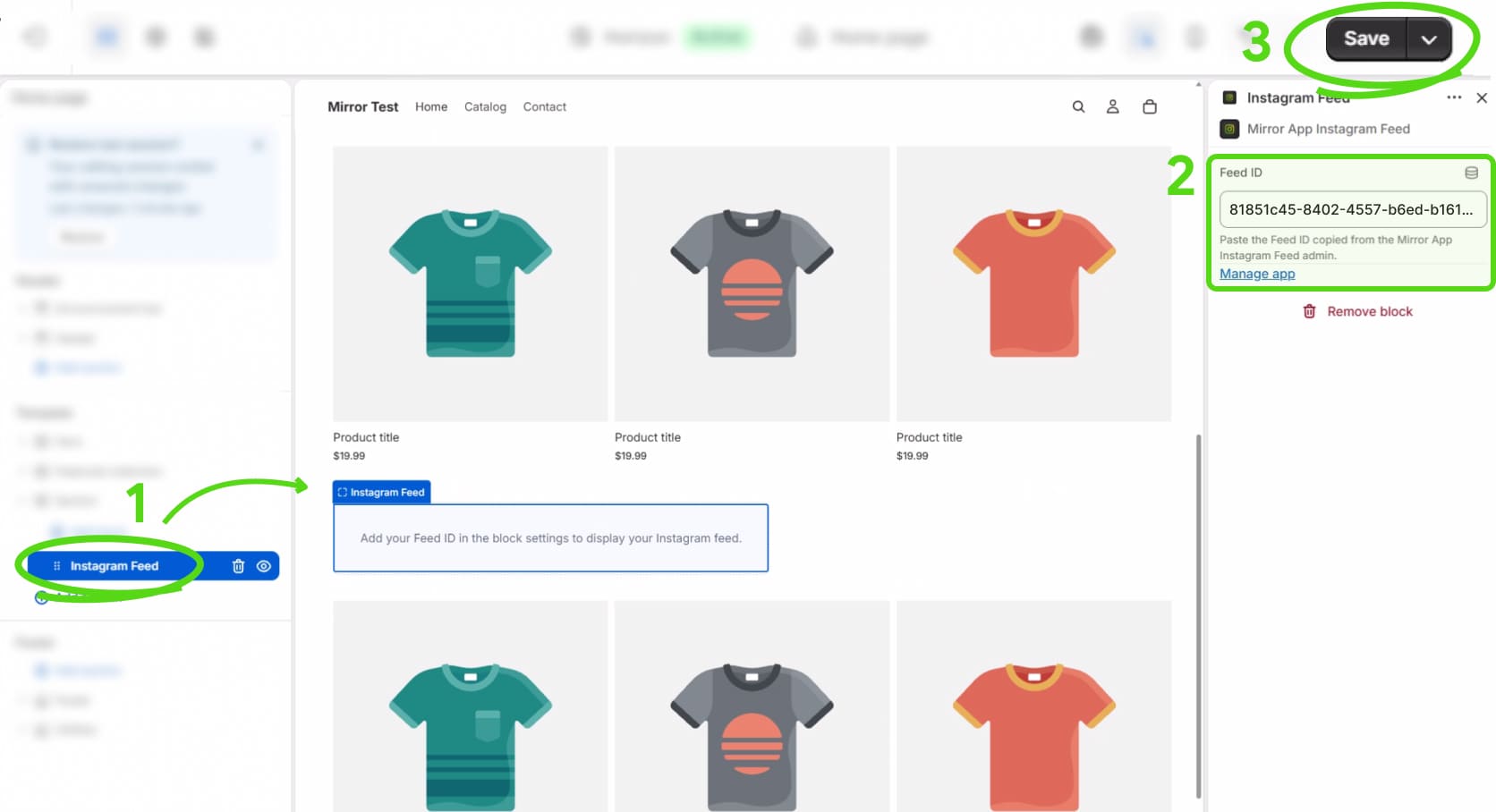
🎉 Done! Your Instagram feed is now live on that page
Manual Setup: Add the Widget Anywhere
Use this option if you want to place the widget in a specific section or position on any page of your store
1
Copy your Feed ID from the embed window (click Add to Store next to your widget)
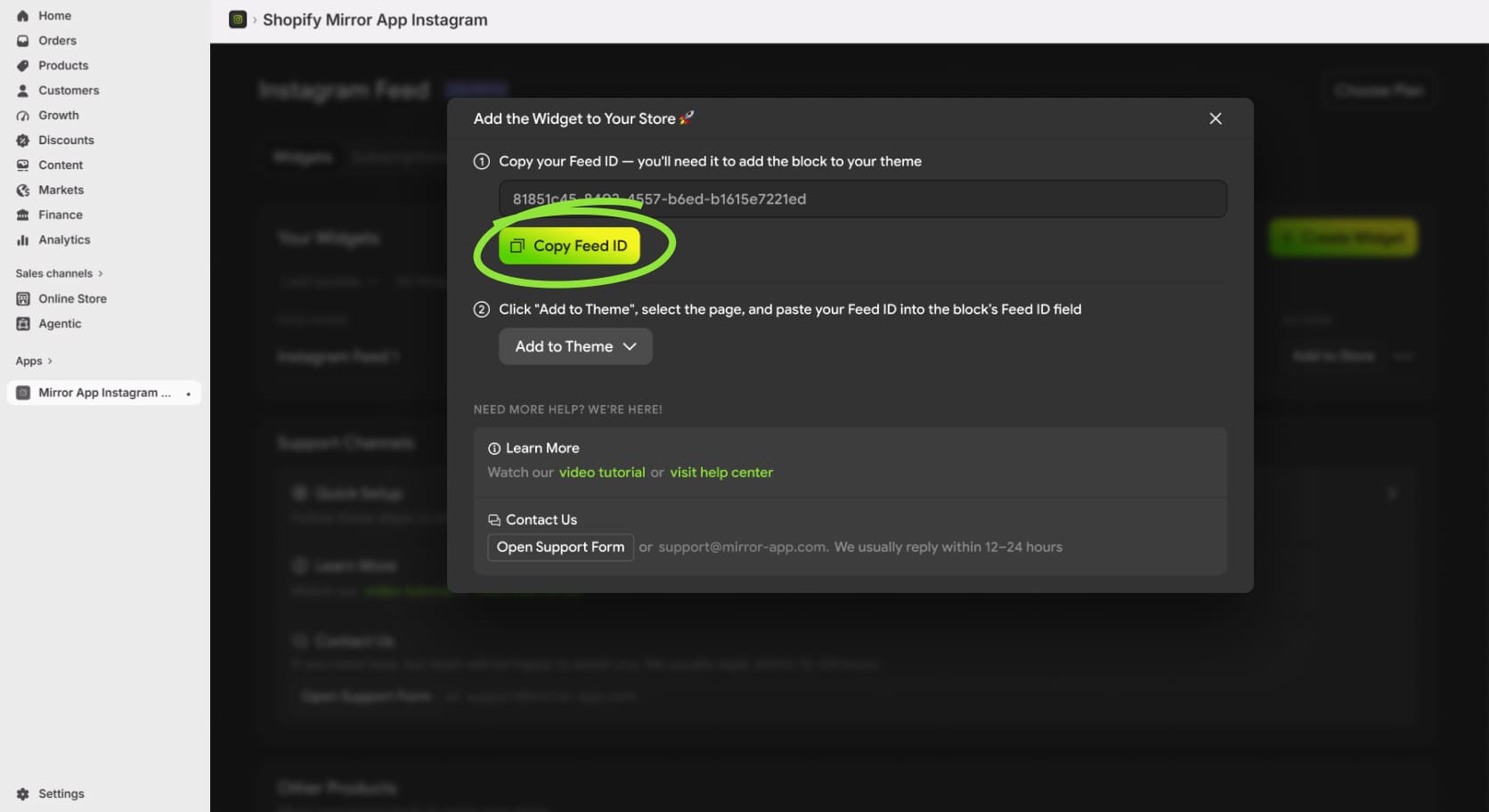
2
In your Shopify admin, go to Online Store → Themes and click Edit theme
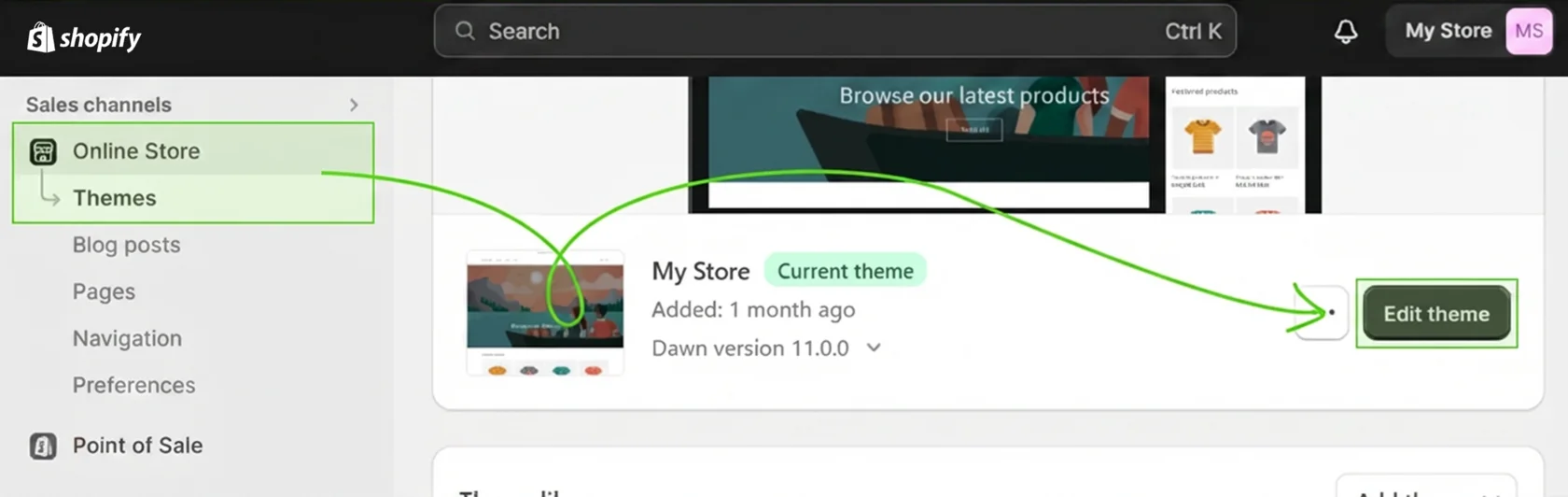
3
Navigate to the page and section where you want to add the widget
4
Click Add block in the left panel
5
Go to the Apps tab and select Instagram Feed (Mirror App Instagram Feed)
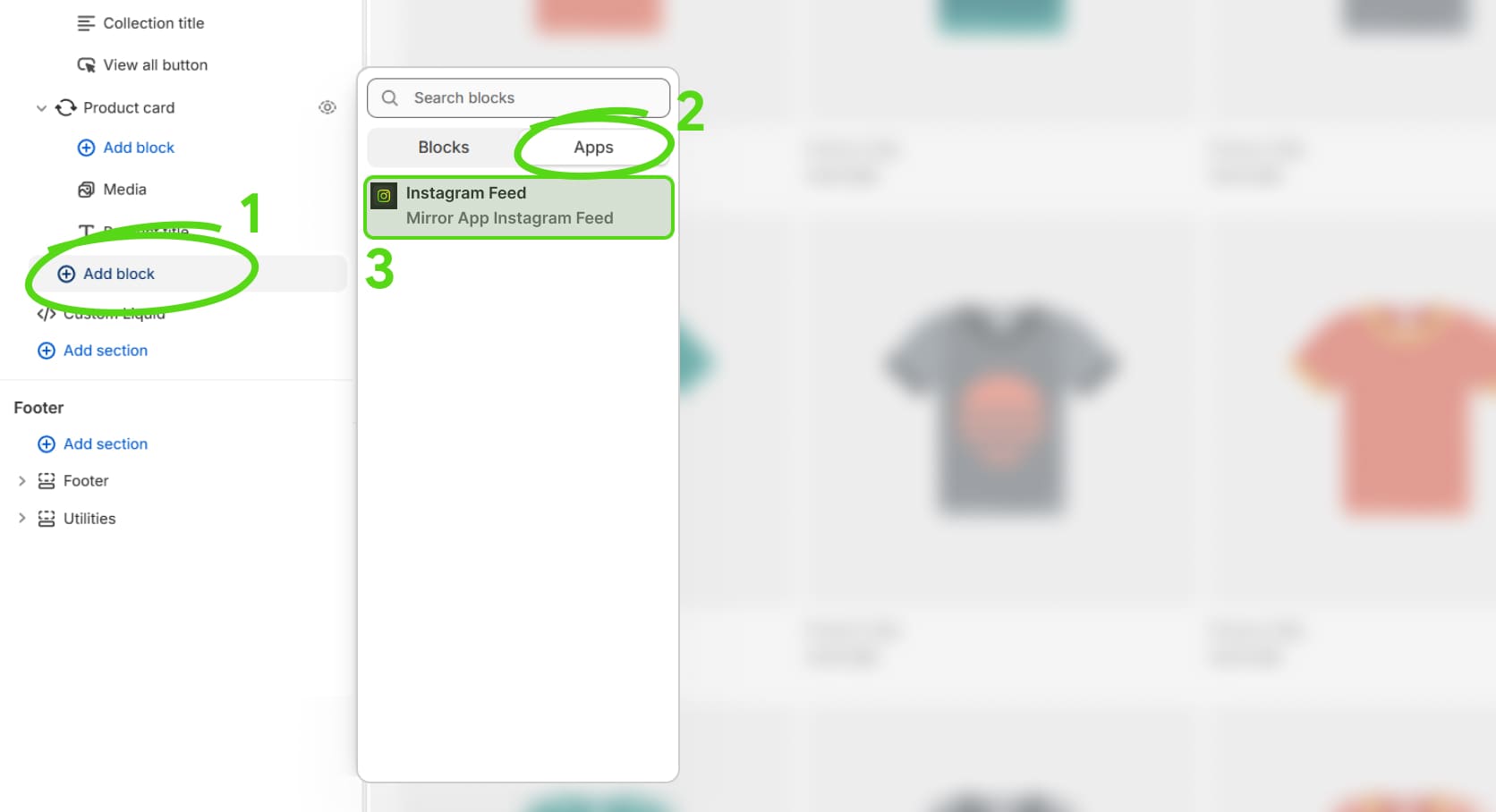
6
In the block settings panel on the right, paste your Feed ID into the Feed ID field
7
Drag the block to the exact position where you want it to appear
8
Click Save
🎉 Done! our Instagram feed is now live in that location

tip
You can add the Instagram Feed block to any section on any page — homepage, product pages, collection pages, or custom pages

Do you still have questions? Contact us



Language
Language