
Setting Sources
Setting Sources for the Reviews Widget
In this guide
Before You Connect a Source
Choosing a Source
Connect Google Business Profile
Connect Facebook Page
Adding Another Review Source
Managing Connected Sources
Publish Your Changes
Troubleshooting
In this guide, you will learn how to connect Google Business Profile and Facebook Page reviews to your Reviews Widget.
You can connect one or both platforms and choose which business pages you want to display. Reviews from all selected sources can be shown together in the All Reviews tab or separately by platform.
Before you begin, make sure you have the required access to your business pages. For detailed instructions, see our guide: Setting Up Access to Your Business Pages.
Before You Connect a Source
Make sure you have access to the business page you want to connect:
• Google: use a Google account with access to the Google Business Profile
• Facebook: use a Facebook account with access to the Facebook Page
Mirror App connects to Google and Facebook through their official authorization systems. Mirror App does not receive or store your Google or Facebook password.
Choosing a Source
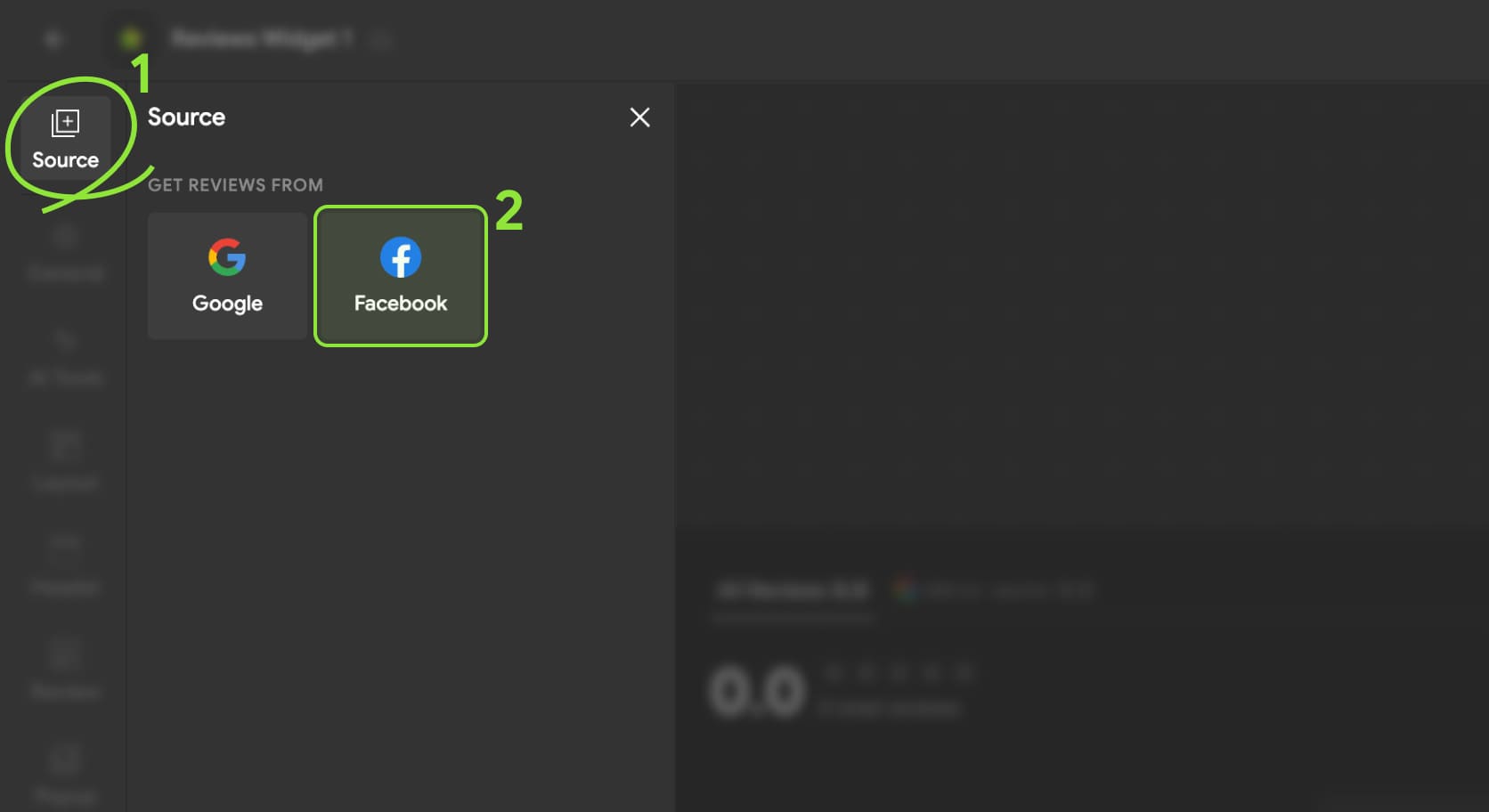
Open your Reviews Widget in the Mirror App editor and select Source in the left-hand menu. Under Get Reviews From, choose the platform you want to connect:
• Google: to display reviews from Google Business Profiel
• Facebook: to display reviews from a Facebook Page


note
Multiple business pages. On paid plans, you can select and display more than one business page within each Google or Facebook connection. This is especially useful for businesses with multiple branches or locations, as reviews from different pages can be combined in a single Reviews Widget. The number of business pages available for selection depends on your current Mirror App plan
Connecting Google Business Profile
1
In the Source section, click Google

2
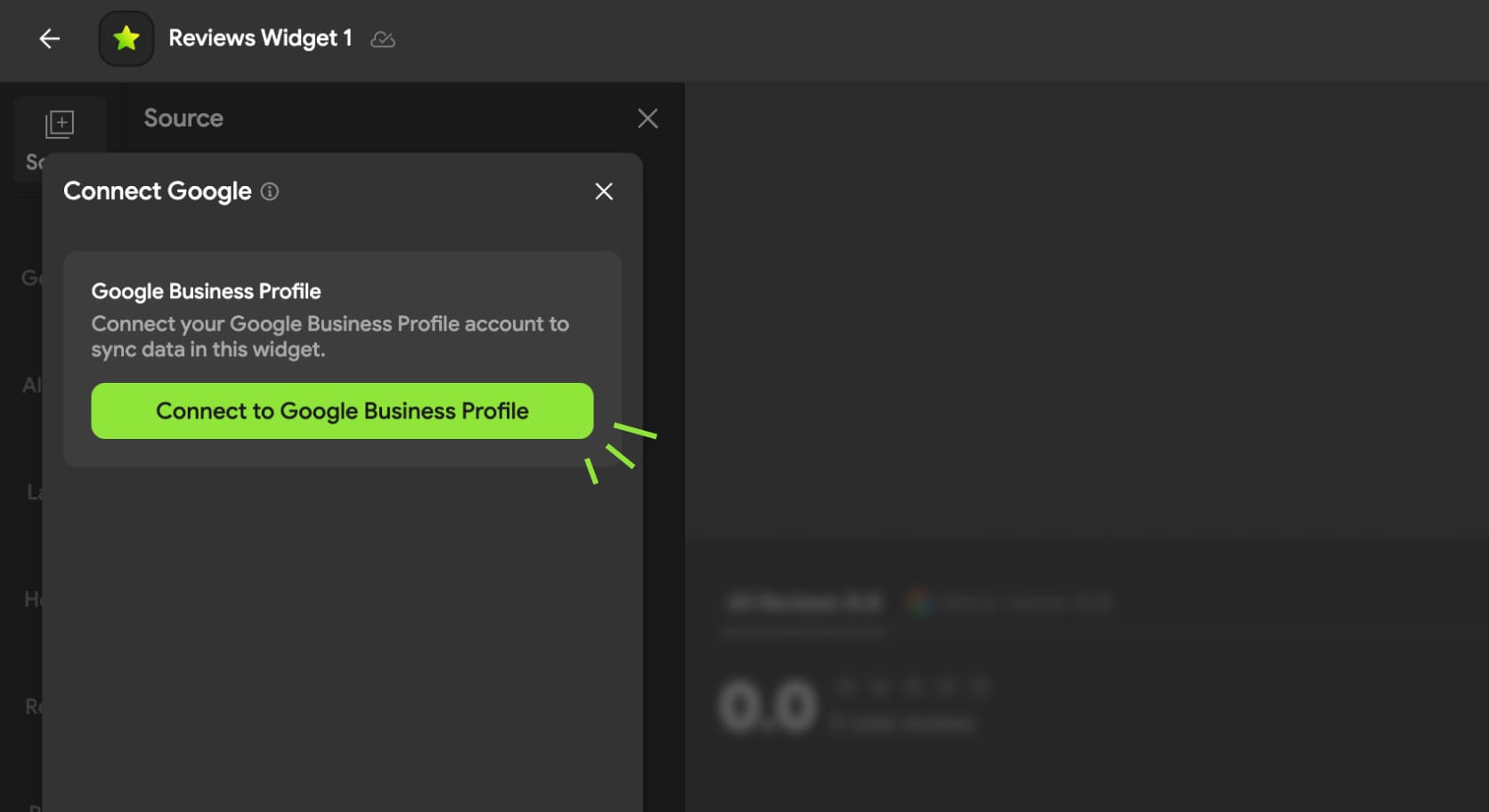
A connection window will open. Click Connect to Google Business Profile
3
Choose your Google account
1
• Select the Google account that manages the Business Profile you want to use
1
• If the required account is not listed, click Use another account and sign in

4
Grant access
1
• Google will show the permissions requested by Mirror App
1
• Review the information and click Continue to authorize the connection
101
• If Google displays additional permission settings, confirm the requested access so Mirror App can retrieve your business information and reviews
note
If you do not grant the requested permissions, Mirror App may not be able to find your business locations or display their reviews

5
Select the business pages
1
• After authorization, you will return to the Mirror App editor
1
• Under Select Pages to Display, select the Google Business Profile locations whose reviews you want to include in the widget
1
• The number next to this heading shows how many pages are currently selected and how many are available for selection

Once a page is selected, its reviews will appear in the widget preview. A green status indicator next to Google Business Profile means the connection is active.
Connecting a Facebook Page
1
Open the Source section and select Facebook
2
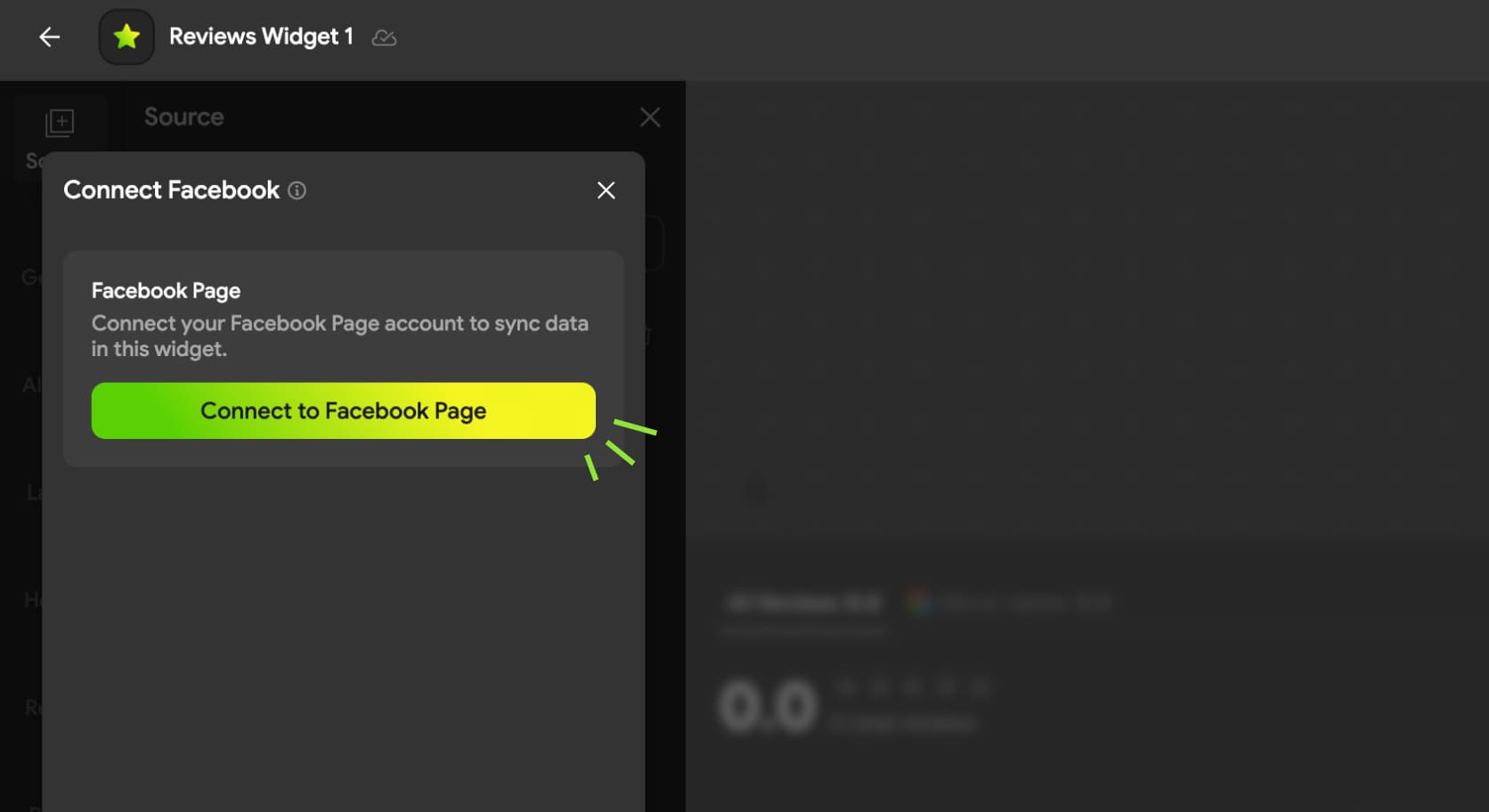
Click Connect to Facebook Page
3
Continue with your Facebook account
1
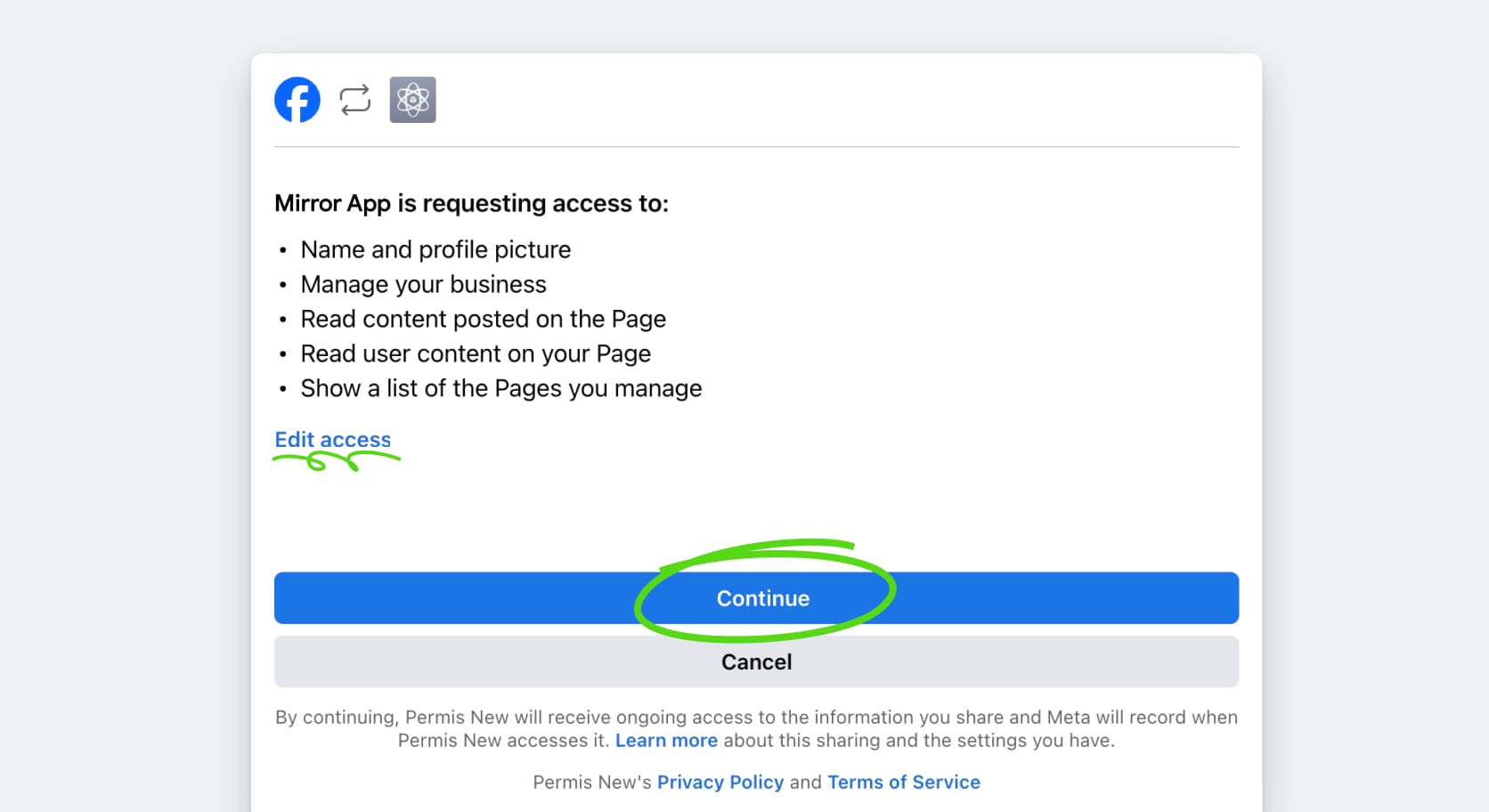
• Facebook will open an authorization window
101
• If you are already signed in to the correct account, click Continue. To review or change the Pages available to Mirror App, select Edit accessor the equivalent option displayed by Facebook
1
• If the displayed account is incorrect, sign in with another Facebook account
note
Make sure the Facebook Page you want to connect is included in the permissions you grant. If the Page is not available after authorization, reconnect the account and review the Page access settings
4
Select the Facebook page
1
• After authorization, you will return to the Mirror App editor
1
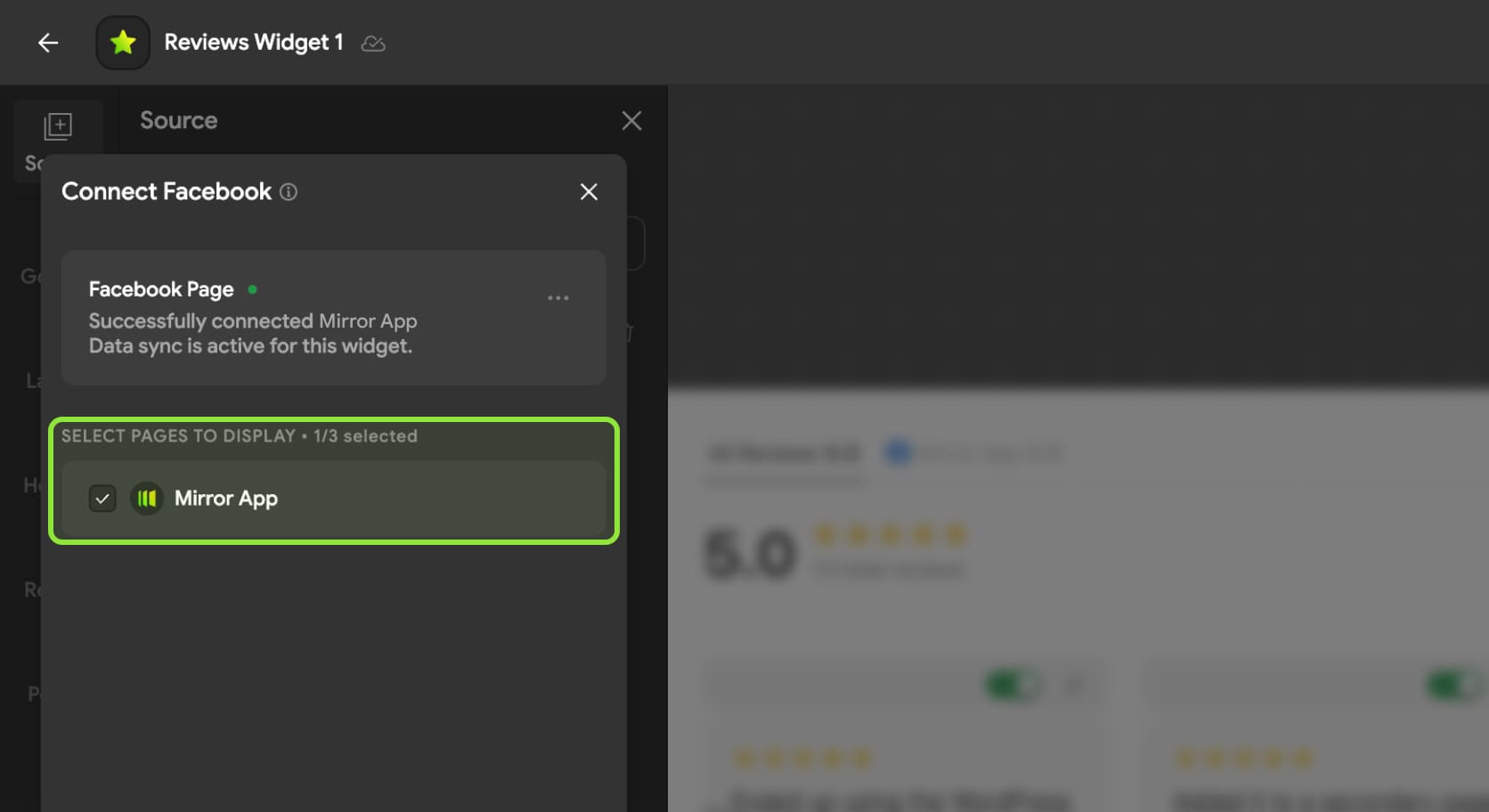
• Under Select Pages to Display, select the Facebook Page whose reviews you want to show
1
• The selected reviews will appear in the widget preview. A separate Facebook tab will also be added to the widget header
Adding Another Review Source
You can display reviews from Google and Facebook in the same widget
To add another source:
1
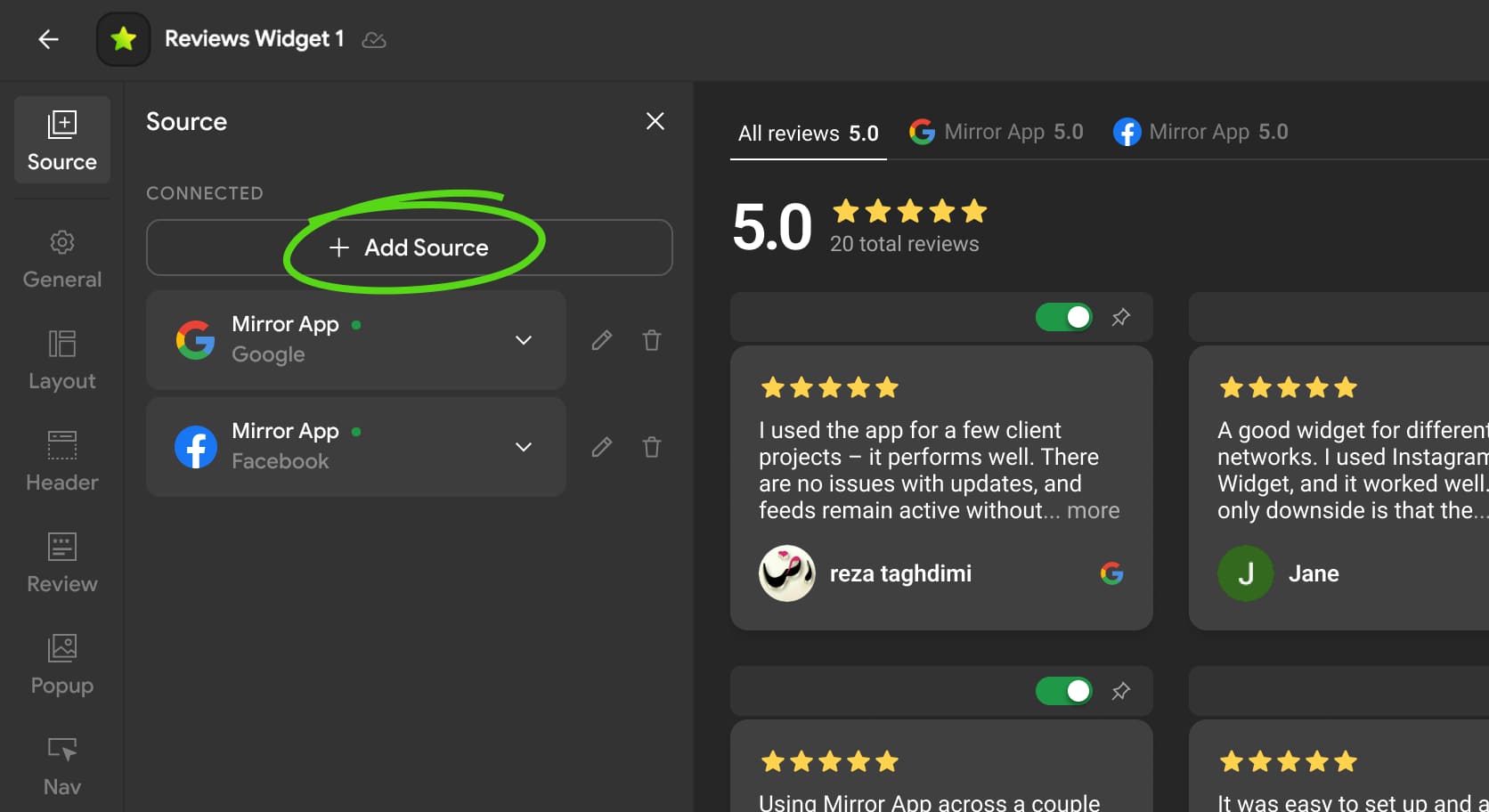
Open Source → Click Add Source
2
Select Google or Facebook. Complete the authorization process
3
Select the business pages you want to display
Once connected, the Source panel will list each connection separately.
The widget preview will contain:
• All Reviews — combining reviews from all selected sources
• A separate tab for each connected Google Business Profile or Facebook Page
Visitors can use these tabs to view all reviews together or filter them by source
Managing Connected Sources
Open the Source section to manage your connections.
For each connected source, you can:
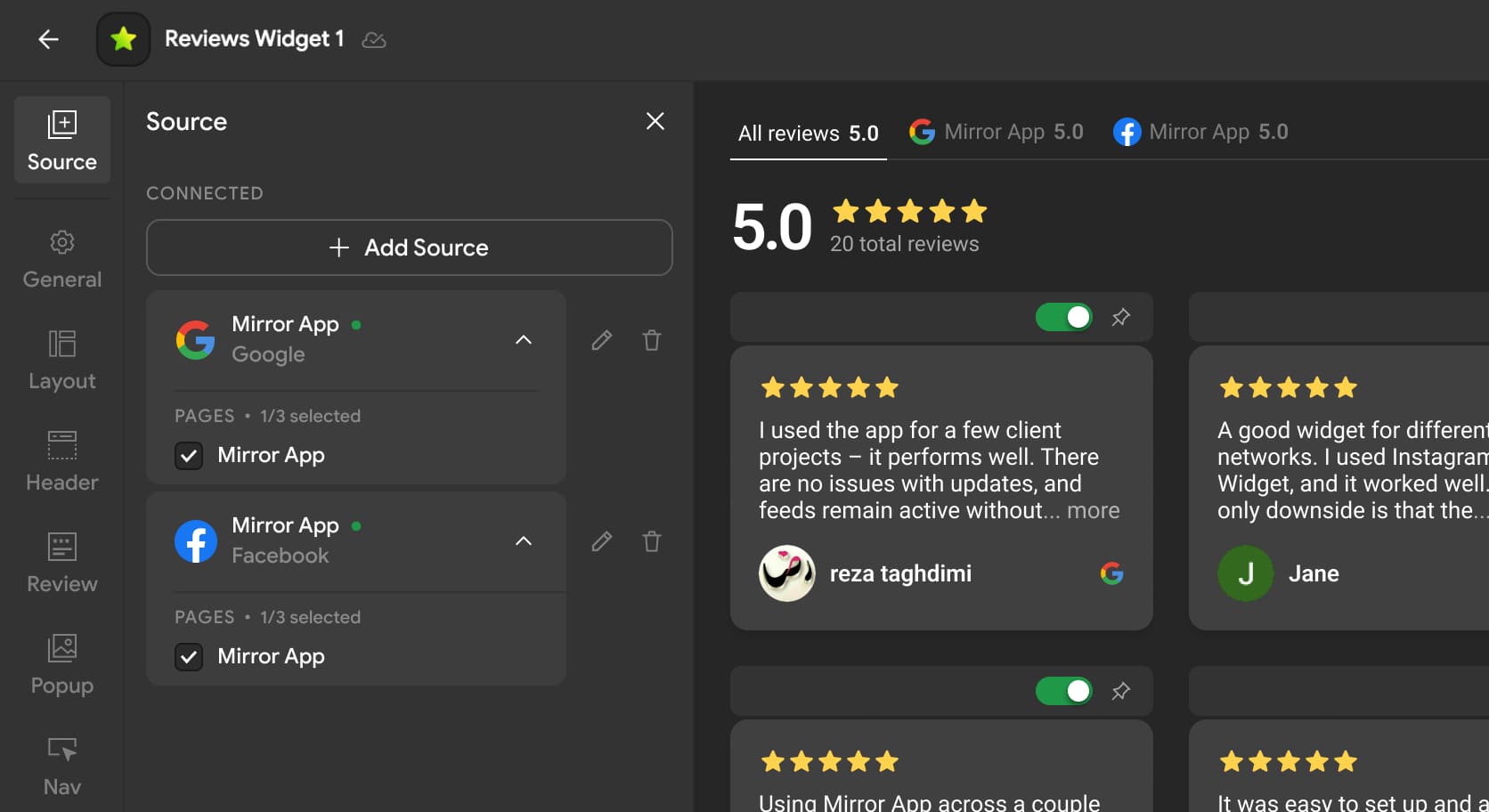
• Expand the source to view its selected pages
• Select or deselect pages
• Open the source settings using the edit icon
• Remove the source using the delete icon
The green dot next to a source shows that the connection is active
If you deselect a page, reviews from that page will no longer be included in the widget after you publish the changes
note
Removing a source from the widget does not delete reviews from Google or Facebook. It only stops displaying them in this Reviews Widget
Publishing Your Changes
Review the widget preview after connecting or changing your sources. When everything looks correct, click Publish in the upper-right corner of the editor.
Publishing applies the updated source settings to the widget installed on your website. You do not need to reinstall the embed code when adding, removing, or changing a source in an existing widget.
Troubleshooting
1
My Google Business Profile Is Not Listed
Check that:
• You selected the correct Google account
• The account is an Owner or Manager of the required Google Business Profile
• You accepted the invitation to manage the Business Profile
• You granted all requested permissions
• The business location is active in Google Business Profile
If the profile is still missing, reconnect Google and repeat the authorization process.
2
My Facebook Page Is Not Listed
Check that:
• You signed in with the correct Facebook account
• Your account has Facebook access to the Page
• You accepted the invitation to manage the Page
• The Page was included during Facebook authorization
• You confirmed all requested permissions
For the most reliable connection, use an account with Facebook access with full control. If necessary, reconnect Facebook and select Edit Settings during authorization to review the available Pages.
3
The Source Is Connected, but No Reviews Appear
Confirm that:
• At least one business page is selected
• The selected page has published reviews
• The source has a green active status indicator
• The widget changes have been published
It may take a short time for newly connected reviews to appear in the preview.
4
Reviews on My Website Have Not Changed
Open the widget editor, confirm that the required sources and pages are selected, and click Publish. You do not need to replace the widget code on your website.
Need More Help?
If you still cannot connect a source or find the required business page, please contact Mirror App Support.
Include your widget code and screenshots of the Source section so our team can investigate the issue.
Include your widget code and screenshots of the Source section so our team can investigate the issue.

Do you still have questions? Contact us



Language
Language