
How to Install Code
How to Add Mirror Widget to Webflow Website
After you create and publish your widget in Mirror App, copy the installation code from the Publish Page and embed it on your Webflow site using the Code Embed element.

note
Adding custom code requires an active Site plan, or a Core, Growth, Agency, or Freelancer Workspace. The Code Embed element is not available on the free Webflow plan
Adding a Widget to a Specific Page
1
Go to app.mirror-app.com, sign up or log in
2
Click Create New Widgetand select your social media source, and customize the design
3
Click Publish and copy the installation code from the Publish Page
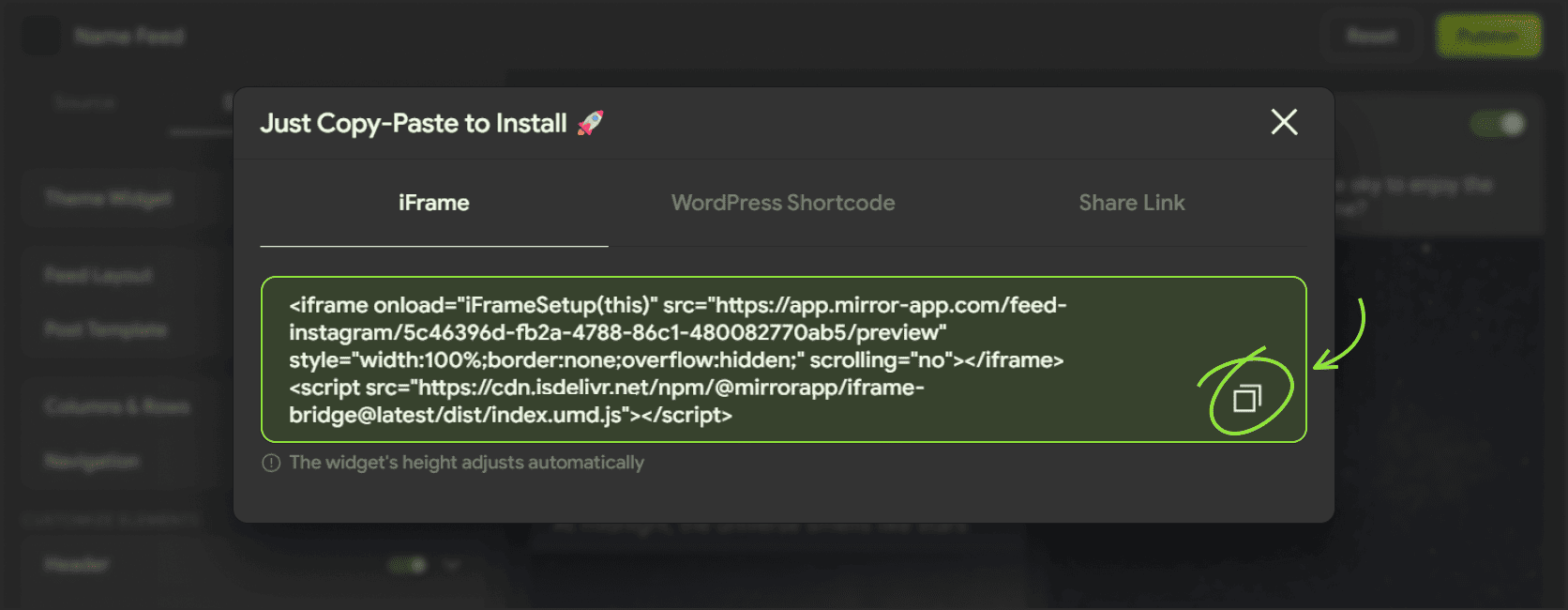
4
Open the Webflow Designer and navigate to the page where you want the widget to appear
5
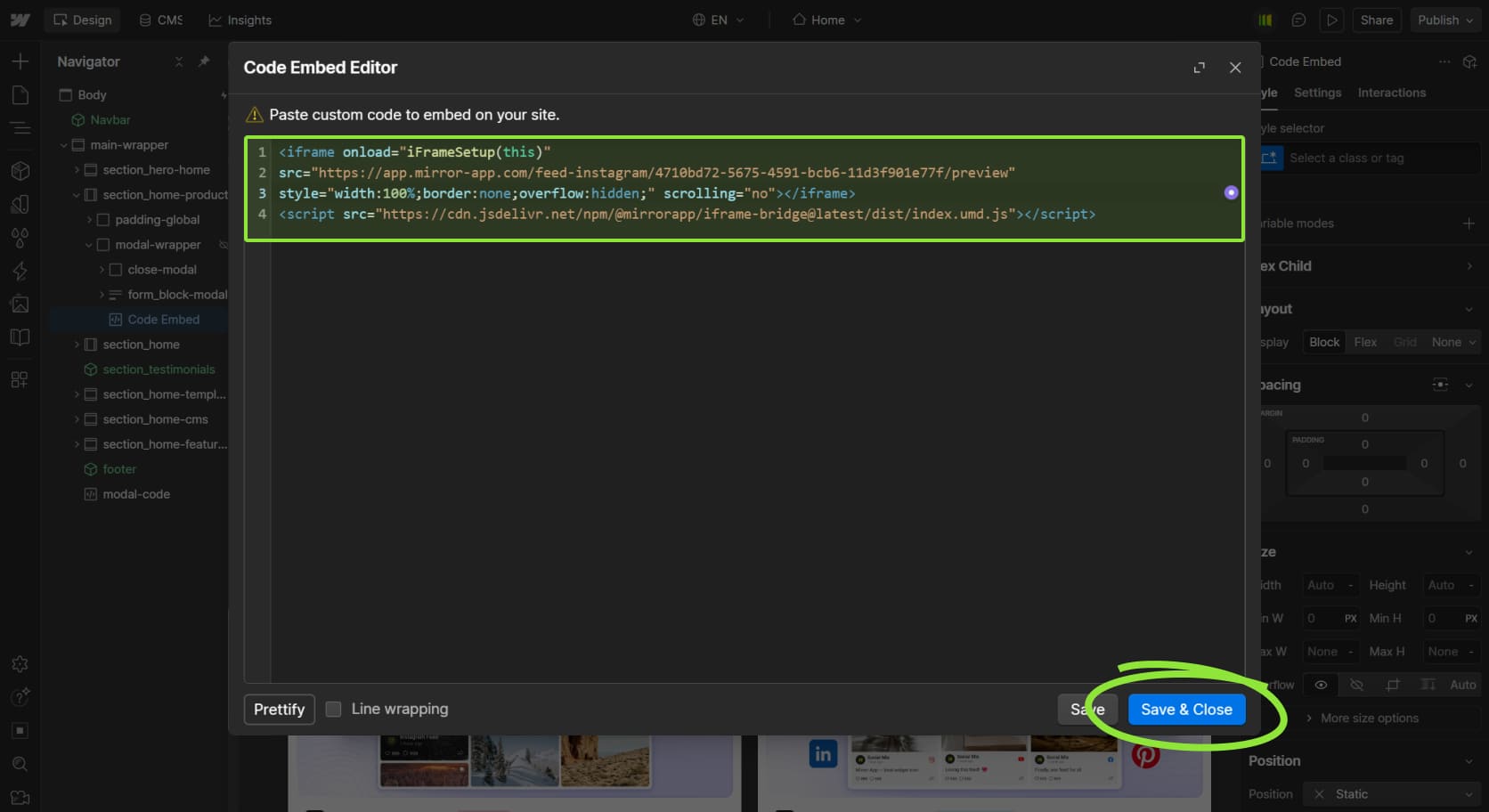
Open the Add panel, find the Code Embed element, and drag it onto the canvas

6
Paste the installation code into the code editor
7
Click Save & Close
8
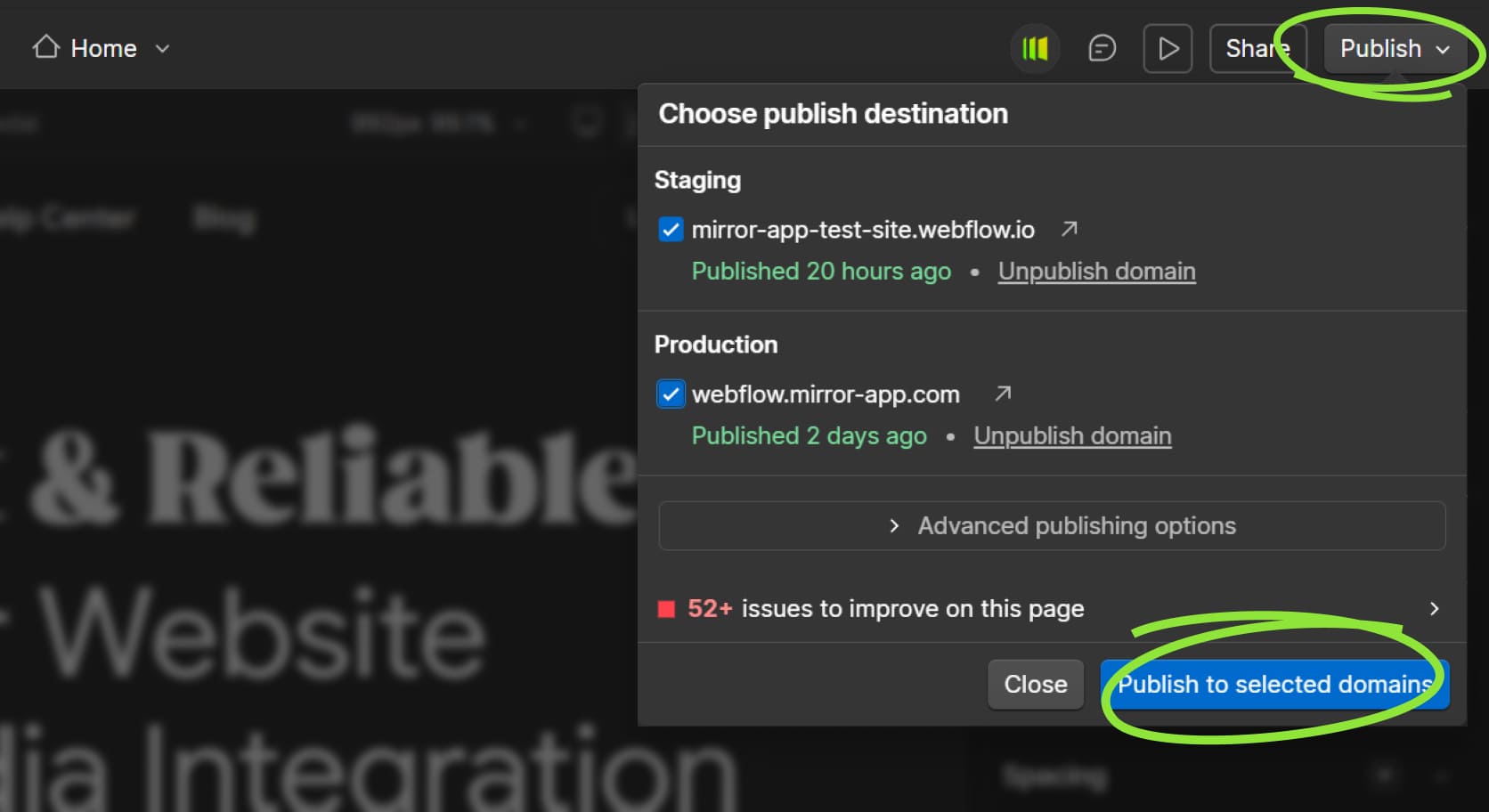
Click Publish → Publish to Selected Domains to make the changes live
🎉 Done! Your widget will now appear on the page

tip
The widget renders only on the published site, not in the Webflow Designer. Elements with a <script> tag show as a placeholder in the Designer — this is expected behavior
Adding a Widget to All Pages
Use this method if you want the widget to appear site-wide (for example, a floating or sticky widget)
1
Copy the installation code from the Mirror App Publish Page
2
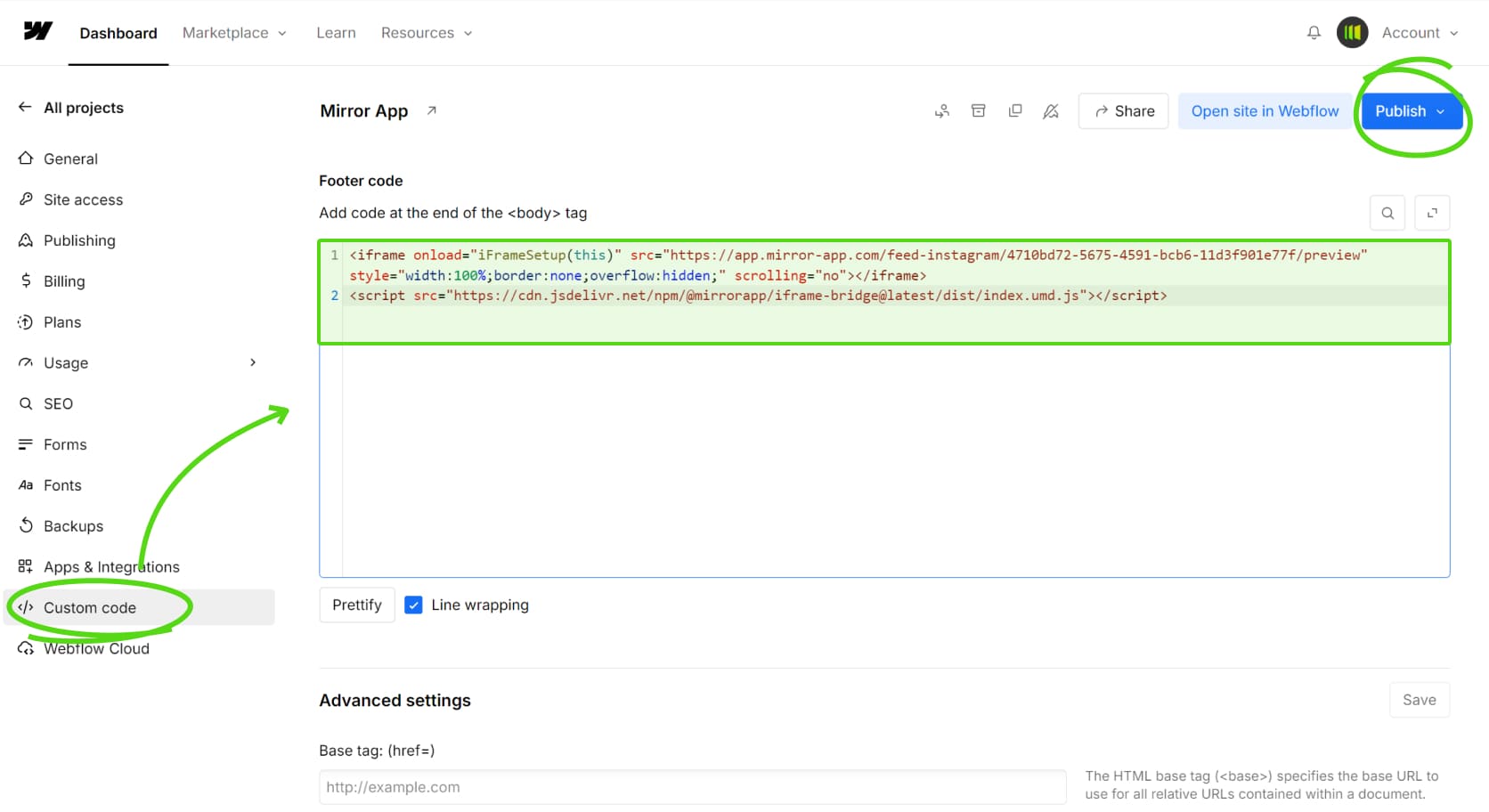
In Webflow, open Site Settings → Custom Code tab
3
Paste the installation code into the Footer code field
4
Click Save Changesthen publish your site
Was This Article Helpful?

Do you still have questions? Contact us



Language
Language